TShark on Kali Linux: 5 easy capture skills
TShark on Kali Linux is the command-line face of Wireshark. It shares the same protocol dissectors and the same filter language, but it runs in a terminal, which makes it the right choice when you have no desktop, are working over SSH, or want to script the analysis.
Defenders use it to triage alerts and pull evidence from captures. Testers use it to see exactly what a client sends and what a server answers. This post covers five practical skills: install it, set capture permissions, take a lawful lab capture, read the file back, and turn what you saw into defences.
The Kali tools page lists tshark in the default, top10 and large metapackages, so a full Kali image usually already has it. The official Wireshark tshark man page is the reference for flags, and the community guide at tshark.dev is a good practical companion. If you would rather work in the graphical interface, we have already covered Wireshark on Debian.
Installing TShark on Kali Linux
If tshark is missing from your install, add it from the Kali repository:
sudo apt update
sudo apt install tshark -y
During the install, debconf asks whether non-superusers may capture packets. Choose yes if you want unprivileged capture, then add yourself to the wireshark group:
sudo usermod -aG wireshark "$USER"
newgrp wireshark
Verify the install and list your interfaces:
tshark --version
tshark -D
Check the installed version with tshark --version. Kali rolling moves fast, and the Kali tools page for Wireshark and tshark can lag the package tracker, which listed 4.6.9 in late October 2026.
Ethical and lawful use
Packet capture reads traffic that is not yours unless you own the wire. In the UK, intercepting communications you are not entitled to intercept can breach the Investigatory Powers Act 2016 and the Computer Misuse Act 1990.
If you run TShark on Kali Linux in a lab, the same legal limits still apply. Only capture on networks you own or have written permission to test, on interfaces you control, for a defined purpose. Delete captures you no longer need, and never store other people’s credentials in a file you keep.
Worked example on a lab target
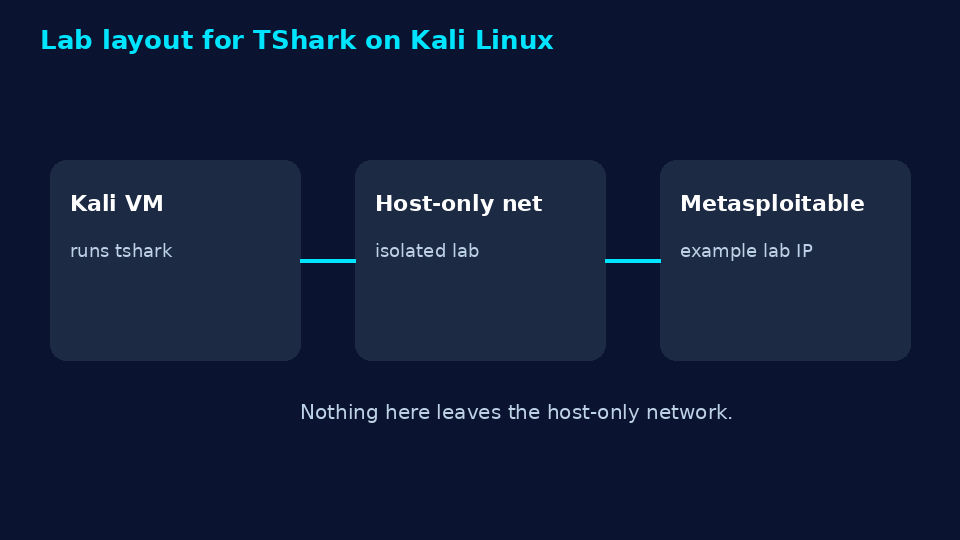
Lab target: Metasploitable, an intentionally vulnerable Linux VM you run locally on an isolated host-only network. Nothing here touches a real system. If you still need to build that lab, see our guide to creating a pentesting environment with Parrot OS and Kali Linux on VirtualBox.
Start a capture on the host-only interface, filtering at capture time so you only keep port 80:
tshark -i eth0 -f "tcp port 80" -w metasploitable-http.pcapng
From a second VM on the same host-only network, request the Metasploitable web server over plain HTTP on port 80. The address below is the usual VirtualBox host-only example; use the lab IP you actually assigned.
curl --http1.1 192.168.56.101
Stop the capture with Ctrl+C, then read the file back and show only HTTP requests:
tshark -r metasploitable-http.pcapng -Y "http.request"
Pull the fields you care about into a clean table:
tshark -r metasploitable-http.pcapng -Y "http.request" \
  -T fields -e frame.time -e ip.src -e ip.dst -e http.request.method -e http.host
You will see the GET requests, the source and destination addresses, and the Host header. On plain HTTP, anything the client sends is visible in the clear. That is the lesson: an unencrypted login form leaks its fields to anyone who can see the wire.
To see the full detail of one packet, add the verbose flag:
tshark -r metasploitable-http.pcapng -Y "http.request" -V -c 1
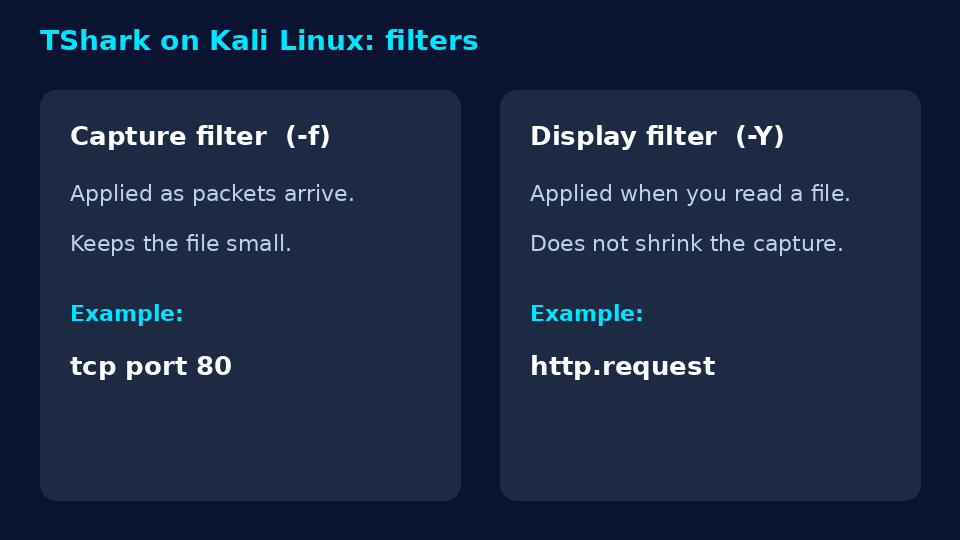
A capture filter (-f) is applied as packets arrive, so the file stays small. A display filter (-Y) is applied when you read the file. Learn that split once, and TShark on Kali Linux becomes much easier to script.
TShark versus the Wireshark desktop
TShark is the same engine as Wireshark with a different front end. Use the desktop when you want to click through a conversation. Use the terminal when you are on a server, in a pipeline, or writing a short lab note.
You can also pair it with a scanner when you are mapping a lab. Our beginner’s guide to Nmap covers that first look at open ports, after which a targeted capture tells you what those ports actually said.
The Wireshark FAQ is worth a look if you need a short answer on permissions, file formats, or why a capture looks empty.
Defences and detections
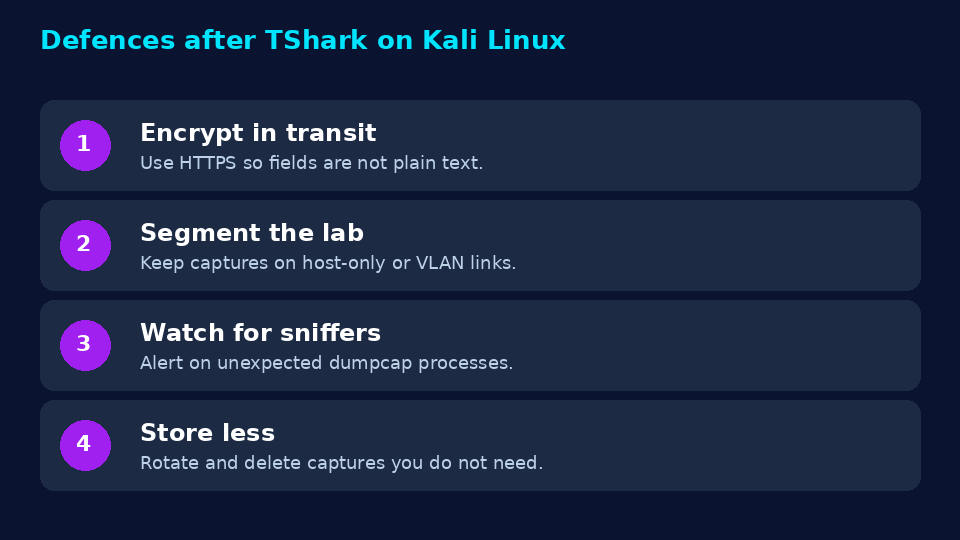
After a capture with TShark on Kali Linux, write down what you will change. What tshark demonstrates, a defender can close down.
- Encrypt in transit. HTTPS removes the plaintext fields tshark reads so easily.
- Segment the network. Host-only or VLAN-limited labs keep capture traffic off shared wires.
- Watch for promiscuous capture. Unexpected capture tools, unusual dumpcap processes, or new interfaces in monitor mode are worth an alert.
- Use capture filters to cut noise. A BPF filter at capture time (
-f) costs far less than a display filter (-Y) after the fact. - Log and rotate captures. Store only what you need, for as long as you need it, and delete the rest.
TShark on Kali Linux gives you the same visibility as Wireshark without opening a GUI. Learn the five skills above — install, permissions, a lawful lab capture, a clean read-back, and the defences that follow — and you can read traffic in a terminal, in a script, or in a pipeline.
Sources: Kali tools page for Wireshark/tshark, Wireshark tshark man page, tshark.dev install guide, Wireshark FAQ.